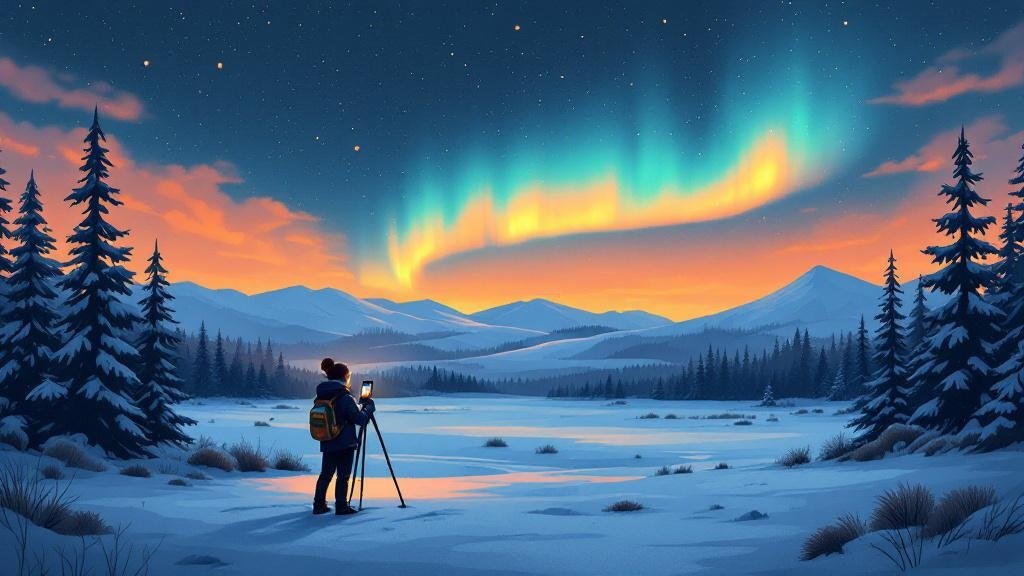
How to Photograph the Northern Lights (Phone & Camera)
Your phone can photograph the northern lights now. That sentence would have been ridiculous five years ago, but iPhone 15 and later, Samsung Galaxy S24+, and Google Pixel 8 Pro all capture aurora shots that would have required a proper DSLR and expensive lens not long ago. You still need to know what you’re doing – night mode alone won’t save a badly planned shot – but the gear barrier is basically gone. Here’s what actually works, from phones to full manual camera setups, based on what produces real results under Lapland skies.
One thing to know upfront: the aurora almost always looks greener and more vivid in photos than it does to your naked eye. That’s not a flaw in your vision. Camera sensors collect light over several seconds, picking up colours and structure your eyes can’t process in real time. A faint grey-green shimmer overhead can produce a stunning photo. Don’t feel cheated – that’s just how it works.
Phone Photography: It’s Genuinely Good Now
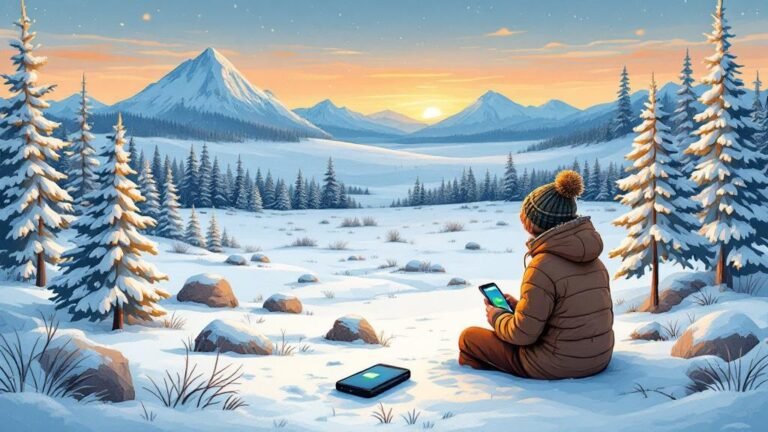
If you have a recent flagship phone, you’re already carrying a capable aurora camera. The key is night mode (or astrophotography mode) combined with a steady surface. Handheld won’t work – the exposure is too long.
iPhone 15 Pro and Later
Open the Camera app and switch to Night Mode (the moon icon). The phone will automatically detect low light and extend exposure. For aurora, you want the maximum exposure time – up to 30 seconds when the phone detects it’s completely still. Prop it against something solid or use a phone tripod mount. Tap the night mode icon and drag the slider to the longest available time.
On iPhone 16 Pro, the 48MP main sensor pulls in noticeably more detail than older models. Either way, avoid the ultra-wide lens at night – the main lens has a wider aperture and better low-light performance.
Samsung Galaxy S24+ / S25 Ultra
Samsung’s night mode is aggressive with processing, which works well for aurora. Open the camera, switch to Night Mode, and set the timer to its maximum. The S24 Ultra and S25 Ultra both handle aurora surprisingly well. For more control, use Pro Mode: set ISO to 800-1600 and shutter speed to 10-15 seconds. You’ll need a tripod or stable surface either way.
Google Pixel 8 Pro and Later
Pixel phones have a dedicated Astrophotography mode that activates automatically in Night Sight when the phone is completely still (on a tripod or propped surface). It takes a 4-minute composite exposure. The results can be remarkable for a phone – but you need patience and the aurora needs to hold relatively steady during the capture.
General Phone Tips
- A phone tripod mount costs under 20€ and makes the single biggest difference in photo quality
- Use a 2-second timer or Bluetooth shutter release to avoid shake when you tap the screen
- Turn off the flash – it does nothing for the sky and will blind everyone around you
- Shoot in the highest resolution your phone allows
- If your phone has RAW/ProRAW capture, use it – you’ll have far more editing flexibility later
Camera Settings: The Manual Mode Starting Point
If you’re shooting with a mirrorless camera or DSLR, manual mode is non-negotiable. Auto mode will hunt for focus in the dark and either overexpose or underexpose. Here’s where to start:
| Setting | Starting value | Why |
|---|---|---|
| Aperture | f/2.8 or wider | Lets in maximum light. If your lens only goes to f/4, it still works – just push ISO higher |
| Shutter speed | 10-15 seconds | Long enough to collect light, short enough to keep aurora structure. Go longer (20-25s) for faint displays |
| ISO | 1600-3200 | Start at 1600, increase if the image is too dark. Modern sensors handle 3200 well; older cameras get noisy above 1600 |
| Focus | Manual, set to infinity (∞) | Autofocus fails in darkness. Switch to manual, focus on a distant light or star, then tape the focus ring |
| White balance | 3500-4500K (or shoot RAW) | Auto white balance often shifts aurora colours. A cooler temperature preserves the greens and purples |
| File format | RAW | Always. You’ll want the editing latitude for exposure and colour correction |
These are starting points, not final answers. A bright, active aurora might look best at ISO 800 and 6 seconds – a faint one might need ISO 6400 and 20 seconds. Take a test shot, check the histogram, adjust. The LCD preview on your camera will look brighter than reality because your eyes are dark-adapted, so trust the histogram more than what you see on screen.
Lens Choice
A fast wide-angle lens is ideal. Something in the 14-24mm range at f/2.8 or faster. The Samyang/Rokinon 14mm f/2.8 is a popular budget choice among aurora photographers – sharp, wide, and a fraction of the price of brand-name equivalents. If you already own a kit lens (typically 18-55mm f/3.5-5.6), use it at its widest focal length and widest aperture. It won’t be as good, but it’ll still capture the aurora.
Tripod and Gear Essentials
A tripod is the one piece of gear that separates aurora shots from blurry green smudges. This applies to phones and cameras equally. No amount of lens quality or ISO performance compensates for camera shake during a 10-second exposure.
Tripod: It doesn’t need to be expensive. A lightweight travel tripod works fine. Carbon fibre is better than aluminium in extreme cold – aluminium gets painfully cold to touch, and the cold makes cheap plastic components brittle. Make sure the legs lock securely; ice and wind are a bad combination with a loose tripod.
Spare batteries: Carry at least two extras for your camera. Lithium-ion batteries lose charge rapidly in cold. Keep spares in your inner jacket pocket, warm against your body. Rotate them – when the camera battery dies, swap in a warm one and pocket the cold one to recover.
Remote shutter release or intervalometer: Pressing the shutter button causes vibration. A cable release, wireless remote, or even the camera’s 2-second self-timer solves this. An intervalometer is even better – set it to take a photo every 15-20 seconds automatically, then walk away and enjoy the aurora with your own eyes while the camera works.
Headtorch with red light mode: You need to see your camera controls without ruining your night vision. White light destroys dark adaptation for 20+ minutes. A red-light headtorch keeps your pupils dilated. Also courteous to other photographers nearby.
Lens cloth: Condensation forms on cold lenses, especially when you bring the camera back indoors. Wipe before it freezes. A microfibre cloth in your pocket is sufficient.
Composition: Don’t Just Point at the Sky
The most common aurora photo mistake is pointing the camera straight up at a green sky with nothing else in the frame. Without foreground, the image has no scale, no sense of place, and looks like every other aurora photo on Instagram.
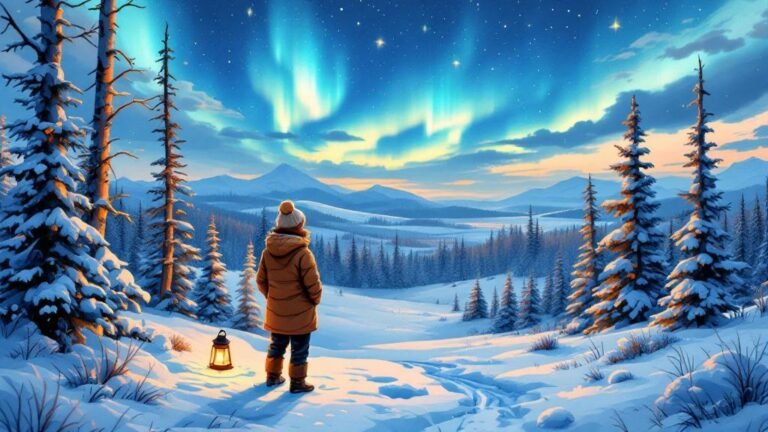
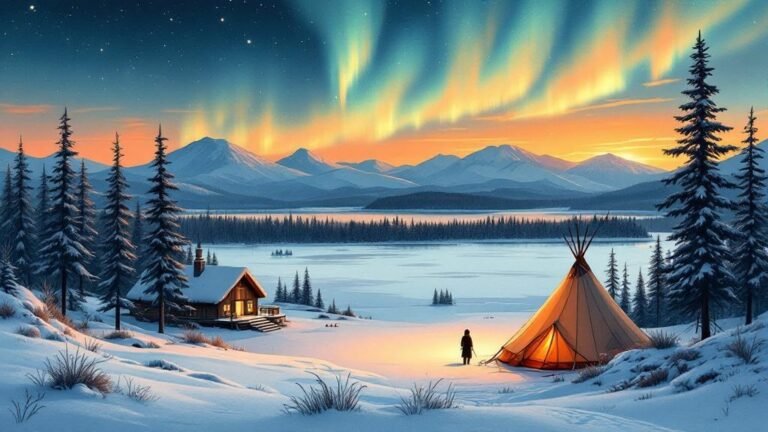
Include something in the lower third of the frame: a treeline, a frozen lake, a cabin with a warm light in the window, a church steeple. In Lapland, snow-covered spruces and birch trees make natural foreground subjects. A frozen lake gives you reflections. A lone figure (or your own silhouette) adds human scale.
A few practical composition notes:
- Place the horizon in the lower third, not the middle – the aurora is the star
- Shoot wider than you think you need. You can crop later, but you can’t uncrop
- Look behind you. The aurora can appear in unexpected parts of the sky, and the best composition might not be where the brightest curtains are
- If the aurora is faint, focus more on foreground interest. A well-composed landscape with a subtle green glow often beats a mediocre shot of a brighter display
Video vs Photo
Aurora video has improved massively with modern phones and cameras, but it’s still harder than stills. The aurora moves slowly for the most part – video of a slow display just looks like a static green smudge. Fast-moving, active aurora (the kind with rapid curtains and colour changes) can make spectacular video, but those displays are unpredictable.
For phones, timelapse mode produces the most watchable result. Set up the phone on a tripod, start a timelapse, and let it run for 15-30 minutes. The compressed time shows the aurora’s movement beautifully.
For cameras, shoot stills and assemble a timelapse in post-production. Take one photo every 10-15 seconds using an intervalometer, then stack them into video using free software like StarStaX or the timelapse function in Lightroom. This gives you both individual high-quality stills and a smooth timelapse from the same shoot.
If you want real-time video, you’ll need a camera that performs well at very high ISO (Sony A7S III or similar) and a fast lens. For most people, stills and timelapse are the better bet.
Editing Aurora Photos
RAW files from aurora shoots will look flat and dark straight out of camera. That’s normal and expected – RAW is meant to be edited. Here’s a basic workflow:
- Exposure: Lift it slightly if needed, but don’t overdo it – you’ll amplify noise
- White balance: Adjust to taste. Cooler tones (lower Kelvin) emphasise greens and blues; warmer tones bring out purples and reds
- Noise reduction: Apply moderate noise reduction. High-ISO images need it, but too much turns the image to watercolour
- Contrast and clarity: A small boost to clarity or structure brings out aurora detail without looking processed
- Saturation: Be honest with yourself here. The temptation to push saturation to maximum is strong. Resist it. Oversaturated aurora photos look cartoonish. If anything, dial saturation down slightly from what looks good on your screen – it’ll look better to everyone else
Lightroom, Capture One, and the free darktable all handle aurora well. For phone edits, Snapseed and Lightroom Mobile are solid. The main thing: edit the RAW file, not the JPEG. If you only shot JPEG, you have less room to work with but can still improve the image.
Realistic Expectations
The photos you see on travel websites and Instagram are typically long exposures of strong displays, edited for maximum impact. They represent the best 1% of aurora photography. Most nights, the aurora is fainter and less colourful than those images suggest.
A few realities worth accepting before you go out:
- A faint aurora often looks grey or pale green to the naked eye, even when the camera captures vivid colour. That’s normal – the camera is not lying, it’s just seeing more than you can
- Cloud cover cancels everything. You can have perfect settings, perfect gear, and a KP7 storm – if it’s overcast, you see nothing. Check the FMI aurora forecast and a local cloud cover map before heading out
- The aurora doesn’t perform on schedule. You might wait four hours and see nothing, or step outside for two minutes and catch the display of the season. Patience is the real skill
- Your first aurora photos probably won’t be great. That’s fine. Shoot a lot, learn from each attempt, and enjoy the experience without viewing it entirely through a screen
The best aurora photo I’ve seen from a tourist in Lapland was an iPhone 15 Pro shot, propped against a boot on a cabin railing. No tripod, no fancy lens. Just the right place, the right night, and a phone that stayed charged long enough.
Frequently Asked Questions
Can I photograph the northern lights with my phone?
Yes – iPhone 15 and later, Samsung Galaxy S24+, and Google Pixel 8 Pro all take respectable aurora photos using night mode. You still need a tripod or completely stable surface. Handheld shots won’t work because the exposure time is several seconds minimum.
Why does the aurora look brighter in photos than to my eyes?
Camera sensors accumulate light over several seconds of exposure, collecting far more colour and detail than your eyes can process in real time. A display that looks faintly grey-green to the naked eye can appear vivid green or even purple in a long-exposure photo. Neither view is “wrong” – they’re just different.
What’s the single most important piece of gear for aurora photography?
A tripod, or any completely stable surface. Every aurora shot – phone or camera – requires multi-second exposures. Without stability, the image blurs. A cheap phone tripod mount does the job for most people. Spare warm batteries are a close second.
Do I need to edit aurora photos afterward?
If you shot in RAW (which you should), yes – RAW files look intentionally flat and dark before editing. Even basic adjustments to exposure, white balance, and noise reduction transform the result. Phone photos processed through night mode are already edited by the phone’s software, so they look decent straight away.
Best Booking Resources for Lapland
After years of travelling to and around Lapland, these are the booking tools I keep coming back to. They consistently offer the best prices, the most relevant options for northern Finland, and actually work well for Lapland-specific searches — which not all platforms do.
- Skyscanner – The best flight search engine for Lapland routes. It catches the budget airlines and seasonal charters that other search tools miss, and the price alerts are genuinely useful for spotting deals on Helsinki-Rovaniemi or direct UK routes.
- VR Finnish Railways – The only way to book Finland’s overnight trains. The Santa Claus Express from Helsinki to Rovaniemi is an experience in itself — book early for the cabin berths, they sell out weeks ahead in peak season.
- DiscoverCars – Compares all the major rental companies at Lapland airports in one search. Crucially, they show which rentals include studded winter tyres — mandatory in Lapland and a detail other comparison sites bury in the fine print.
- Booking.com – Has the widest selection of Lapland accommodation by far, including cabins, glass igloos, and small family-run guesthouses that don’t list elsewhere. Free cancellation on most properties makes it low-risk for planning ahead.
- GetYourGuide – The largest marketplace for Lapland activities: husky safaris, snowmobile tours, aurora trips, reindeer visits. You can compare operators and prices side by side, and most bookings are cancellable up to 24 hours before.
- SafetyWing – Travel insurance designed for adventurous trips. Covers winter sports, extreme cold activities, and medical evacuation — all relevant when you’re snowmobiling at -25°C. Affordable and the claims process is straightforward.
- Holafly – eSIM that works in Finland from the moment you land. No hunting for local SIM cards at the airport, no roaming surprises. Set it up on your phone before departure and you’re connected in Lapland immediately.
Some of the links above are affiliate links — if you book through them, I earn a small commission at no extra cost to you. I only recommend services I genuinely use and trust for Lapland travel.